R.B.
Any A4 sized white page is fine. This can be an A4 sized notebook or loose A4 sheets. A little bigger than A4 is also acceptable.
If you use smaller pages, the aggregate number of pages will increase and the size of your PDF file will increase with it. Naturally, your submission will take longer.
5 mark Questions: 200 words
10 marks Questions: 400 words
15 mark Questions: 600 words
20 mark Questions: 800 words
Remember that it is the Quality of your answers that matter most, NOT the length of your answers. Word Limits are set to test your abilities of writing precise to-the-point answers. Hence, DO NOT exceed the word limit by more than one or two sentences. Beware that marks may be deducted for excessively long answers.
Black is better for scans. Blue is allowed. Important thing is Scan should be legible.
The first page should be the cover page.
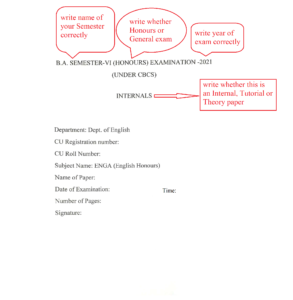
Write the name of the exam on top of the page (Name of the exam will be written on the Question Paper and/or your Admit Card).
Leave some space in between and write the name of the department around the middle of the page. Then write your University Registration Number, University roll number, Subject Name, Name of the Paper, Date of exam, the number of pages in your answer script and, finally, your full signature.
Note: College Roll Number is not required during University Examinations.
Example of cover page:
No, not necessary. You may print OR handwrite.
The important thing is: all the information must be provided correctly, as mentioned in the previous question.
No, the first page will be the Cover Page (as instructed in Question 3). The First Page (Cover Page) will NOT have any Page number. Start writing answers from the second page. The Second page will be Page No 1.
A little margin (around 1 inch) on all sides will be better for scans.
Important thing is: the entire page should be on the scan and the scanned pages should not be bent, hazy or blurred, especially around the corners.
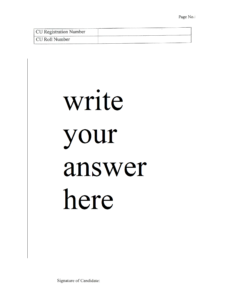
Remember that your Second page is where you start writing your answers. Second page is Page No. 1 of your answer script (As mentioned before, the first page will be the cover page).
Write both Registration number and CU roll number.
Also, Page number (at the top right of every page) and your full signature (at the bottom of every page) are a MUST.
***Note: College Roll Number is not Significant during University Examinations.
Example of all subsequent pages:
You have to write the entire 12 digit Roll number and 13 digit Registration number with HYPHENS in between. Always remember this. Any other way of writing (eg. without hyphen OR just the last 3 digits OR with underscores in place of hyphens OR with extra spaces) is incorrect.
For example:
Registration number 0331211001117 is WRONG but 033-1211-0011-17 is CORRECT.
Roll Number 202033110113 is WRONG but 202033-11-0113 is CORRECT.
Yes. Also, pages must be in the correct chronological order i.e, the sequence should be Page No 1, Page No 2, Page No 3 and so forth. It should NOT be at random as in Page 3, page 1, Page 2, and so on.
Note: No need to write Page Number on the Cover Page.
Yes, put your full signature at the bottom of every page.
To convert your answer script to PDF, you must use a Scanner app on your phone. Make sure to learn/practice how to SCAN documents, how to convert them into PDF, and how to UPLOAD them. Before the exam, practice scanning pages and converting to PDF.
Note: Students often ask us which app to use. This is not a question we can answer because all apps are not compatible with all phones. You have to find an app that works seamlessly on your phone. It must be an app you're comfortable with. Some APPS that have these features are vFlat, Doc Scanner, Adobe Scan, etc… There are other apps as well and it is advised that you try out several apps and determine which works best for you.
File name SHOULD be:
Registration number + Subject Code (such as ENGA/ENGG/ENGM) + Paper/Elective Name (such as CC3, CC4, GE 1etc...) + Component (such as Term paper, Internal, Theory)
For Components, write: TP for Term Paper, IN for Internal, and TH for Theory.
Example for HONOURS:
033-1211-0011-17_ENGA_CC1_TH
Example for GENERAL:
033-1211-0155-17_ENGG_GE1_TH
Example for AECC:
033-1211-0155-17_ENGM_AECC1_TH
Apart from the duration of the exam, you'll get 30 minutes extra for submission (uploading).
Example: If the exam starts at 2 PM, you’ll get the Question paper around 1:45 PM (You may start writing as soon as you have the Question papers).
If it is a 2-hour paper, you may write till 4 PM. Submission has to be done latest by 4:30 PM.
If it is a 3-hour paper, you may write till 5 PM. Submission has to be done latest by 5:30 PM.
Some of you will face problems uploading. Sometimes it will be due to network issues, at other times it will be due to problems with your device. This is a normal thing and, if it happens, DON'T PANIC. There are several solutions to this problem and panicking is certainly not one of them.
In case you are unable to upload, try these fixes:
- Clear your browser's "cache" in the browser's settings and try uploading again.
- Before the exam, install at least 2 browsers on your phone (some browser apps are Chrome, Firefox, Kiwi, Brave, Opera, etc...). If the previous fix doesn’t work, try using the alternative browser/s and try again.
- If the previous fix doesn’t work, try another phone.
- If none of the above work, use a laptop or desktop if you have access to one.
If none of these fixes work for you, send your PDF to a classmate who has already submitted (you can know this from the submission status sheet) and request them to upload it for you by entering your email address, and your details (Name, Registration, Roll, Date of exam, etc).
You can also use the phone or any other device of any friend or family member. But the important thing is: you must put your information correctly (email, name, registration number, roll number, etc...) while filling the form.
Yes, you can upload from ANY phone or laptop or PC.
You can use the phone or any other device of any friend or family member. But the important thing is: you must put your information correctly (email, name, registration number, roll number, etc...) while filling the form.
You can use ANY phone or laptop or PC. Remember that in most cases, form-not-opening is a browser problem. Most of the time, if you clear your browser's “cache” from the browsers settings, this problem will go away. If not, you can try a different browser.
If the problem continues, you can use any other phone (friend or family member). Important thing is, no matter whose phone you use, you must put your own email address while filling the form.
Email has file size restrictions and that is the reason our department is using Google Forms rather than email.
If we are unable to submit via google form, try the troubleshooting techniques (see Question 12). We have found that 9 out of 10 times, the fixes will work. However, if those fixes don’t work for you, report to the HoD and, only after taking his/her permission, may you send via email.
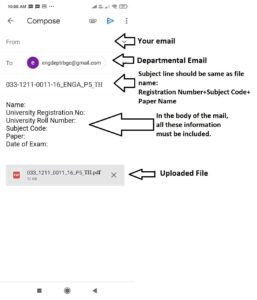
(Refer to the sample email above)
If and when you email, the subject line should be EXACTLY SAME as your file name.
There are two ways to know if your submission was received.
First, once your file is submitted successfully, the following message will be displayed on your screen: "Your answer script has been successfully submitted."
OR
Second, you will get a Google Sheet link where you'll get to know the submission status. Once you submit your PDF, wait for 3-5 minutes for the sheet to be updated. If you have submitted and the status does not reflect as "Received" after 5 minutes, contact HoD via a text message.
Note: DO NOT share screenshots as proof of submission. If the message "Your answer script has been successfully submitted" is displayed on your screen or the Google Sheet shows the status as “Received”, it means that your submission has been received. DO NOT share screenshots unnecessarily.
If you have submitted your answer script and your name doesn't show after 5 minutes, you have very likely submitted using the wrong form.
Make sure you have submitted using the correct form. If you have, wait for around 5 minutes for the submission status page to update. If it still doesn't show, contact the HoD.
Your name will not appear on the submission status page/spreadsheet if you submit using the wrong form. So, if your name does not appear on that page, it is very likely that you submitted using the wrong form.
You can also check the email you got after submission and find out which form you used f submission.
If you submitted but did not receive any confirmation mail, it may be because you provided the wrong email address during submission.
If this is the case, check whether your name appears on the submission status sheet. If it is on the sheet, you do not have to worry about the confirmation mail.
Create a folder on your phone's file manager. Name it "Even Sem Exam 2021".
After submission of the PDF of every paper, "cut" or "move" the PDF to the abovementioned folder so that you don't send that file again during the next exam.
Before submission, make sure to absolutely double check the files that you upload.
If you have uploaded the wrong PDF file, report to the HoD immediately. If you report after the exam is over, resubmission won't be allowed.
If you have submitted the wrong file, write an appeal (via email) to the HoD. In the email, add an appropriate subject line and, in the body of the email, address the HoD and explain your mistake and appeal for your late submission to be accepted.
In the end, attach the correct PDF.
The mail will be forwarded to the examiner. However, it cannot be guaranteed whether the examiner will accept it.
Example:
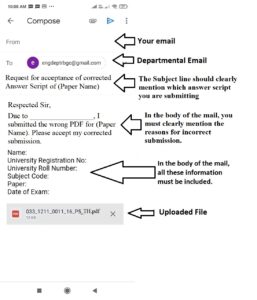
Since you have submitted the wrong roll number, write an appeal (via email) to the HoD. In the email, add an appropriate subject line and, in the body of the email, address the HoD and explain your mistake and appeal for correct roll number or registration number to be noted.
In the mail, mention the name of the paper (in which the mistake happened) and provide the correct roll number and/or registration numbers.
The mail will be forwarded to the examiner. However, it cannot be guaranteed whether the examiner will accept it.
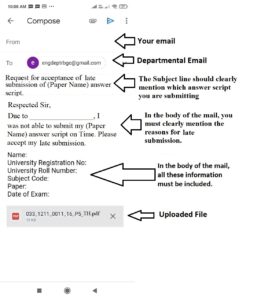
If you have submitted after the submission period is over, your submission won't be accepted. You must immediately write an appeal to the departmental email ID.
In the email, add an appropriate subject line (eg. "Request for acceptance of late submission of answer script/Term paper) and, in the body of the email, address the HoD and explain the reason for late submission. Also, appeal for your late submission to be accepted for evaluation.
In the end, attach the correct PDF.
The mail will be forwarded to the examiner. However, it cannot be guaranteed whether the examiner will accept it.
Example:
If you have been informed that the PDF you submitted is incomplete (some pages are missing), you must immediately write an appeal to the departmental email ID.
In the email, add an appropriate subject line (eg. "Request for acceptance of incomplete submission of answer script") and, in the body of the email, address the HoD, and explain the reason for incomplete submission.
Next, write your Name, CU Registration Number, CU Roll Number, Subject Code, Paper Name, and Date of Exam.
In the end, attach the correct PDF.
Example:
Hi, this is a comment.
To get started with moderating, editing, and deleting comments, please visit the Comments screen in the dashboard.
Commenter avatars come from Gravatar.
Thank you
….
Thankyou